What is Plex?
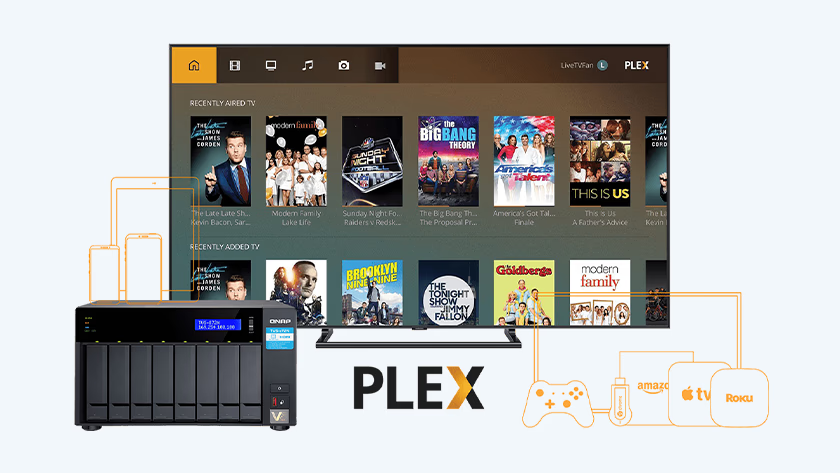
Plex is an application that helps you manage your media library in the easiest way possible. You control this app from your NAS, and use it on every device that’s connected to your server. Think of a laptop or smartphone, but also your gaming console for example. All connected devices can access movies, series, music, and more. Plex is also very useful for fetching metadata, which is information about your media. For example, the genre of the movie or the producer of your favorite albums. With this data, you divide libraries even better and keep everything organized.
What do you need to install Plex?
You don’t need much to install Plex, but we’ll list everything for you to make it easier:
- A Synology NAS
- A stable internet connection
- A laptop or desktop
- A (modem) router connected to your NAS and computer
Create Your Media Folders in Synology Nas
Install Plex via a connected PC
Register yourself and your NAS
Create your libraries
Set up your devices
Before we install Plex we need to create your media folders
Log into DSM (DiskStation Manager).
Open File Station and create the following folders:
/video/tvshows/video/movies/downloads/complete/downloads/incomplete
Install Plex via a connected PC
Open the configuration page of the Synology NAS in a web browser on your computer. This computer must be connected to the same network as the NAS. Do this via find.synology.com and wait until your NAS appears on screen. Click on the top left of the main menu and open the ‘Package Center’. Select the search function on the top left of this new screen and search for ‘Plex’. Choose install and wait about 5 minutes. Done? Look at the main menu of the Synology NAS and click on the Plex logo.
Register yourself and your NAS
After you’ve clicked on the logo, Plex opens a new window in your browser. You’ll find an option to log in or register on the middle of the screen. Choose register and create a username and password with your email address. Write this information down, because you’ll need it later for adjustments and updates. Select ‘Log in’ and choose a name for your server on the next screen.
Create your libraries
Before we can add our libraries in Plex we need to add permissions for plex to access our folders.
- In DSM go to “Control Panel > Shared folder:.
- Select the media folder you want Plex to have access to.
- Click Edit.
- Click on the Permissions tab.
- In the dropdown change “Local users” to System internal user”.
- Find and select the PlexMediaServer
- Tick the Read/Write permission box and click Save (or OK).
Create your libraries
Now it’s time to create your libraries. Select what types of media you want to add. After that, a pop-up screen will open and ask you to choose the location of your media. Repeat this for all other libraries. Working with multiple drives? Remember which drive stores which media type. So you know which media you’ve lost in case one of the drives breaks, for example. Also make sure your movies and series aren’t in 1 folder. And you want to create different libraries for all your series to keep it all clearly structured.
Set up your devices
After you’ve created your libraries, it’s time to set up your devices. Download the Plex app onto your device, or go to plex.tv on your computer. Log in with your account, and you’re done. You can check which devices are connected to Plex and your Synology NAS via the web browser. Click the settings icon on the home page and go to ‘Authorized Devices’. Here, you’ll find a list of all connected devices. You can also remove certain devices though this menu by selecting the red cross. If you try to log into Plex on this device later, you add it again automatically.