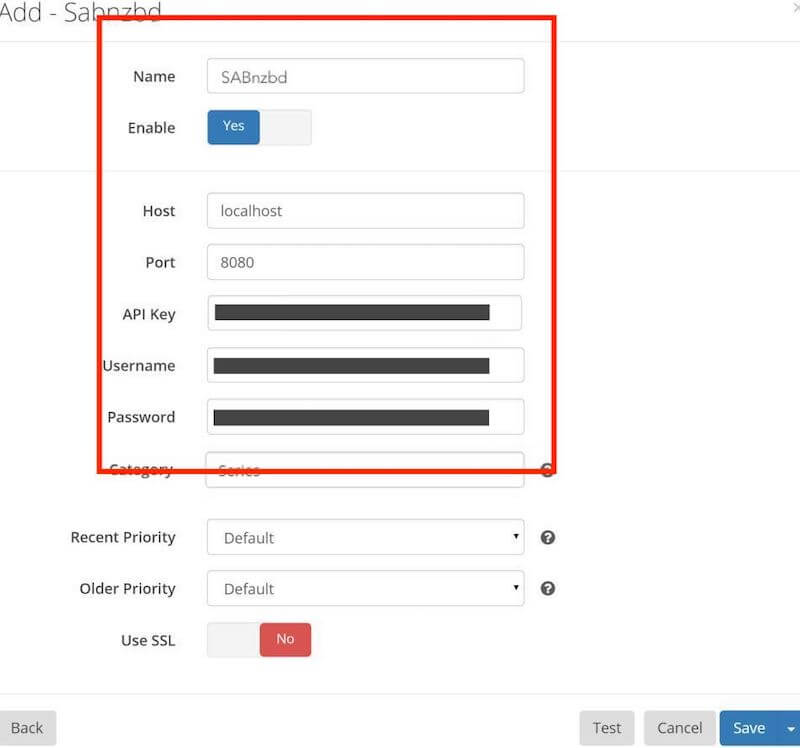
Now that SABnzbd is installed on your system, you can start configuring it.
Then we will configure it to Sonarr and Radarr
When starting with SABnzbd, you’ll need to set up the appropriate server and port settings to establish a connection with your Usenet provider. Here’s how you can configure these basic settings:
- To open SABnzbd’s user interface, first, ensure the service is running (1), and then open a web browser and (2) type localhost:8080.
- If the service is running on another device, replace the “localhost” with the IP address or hostname of the device.
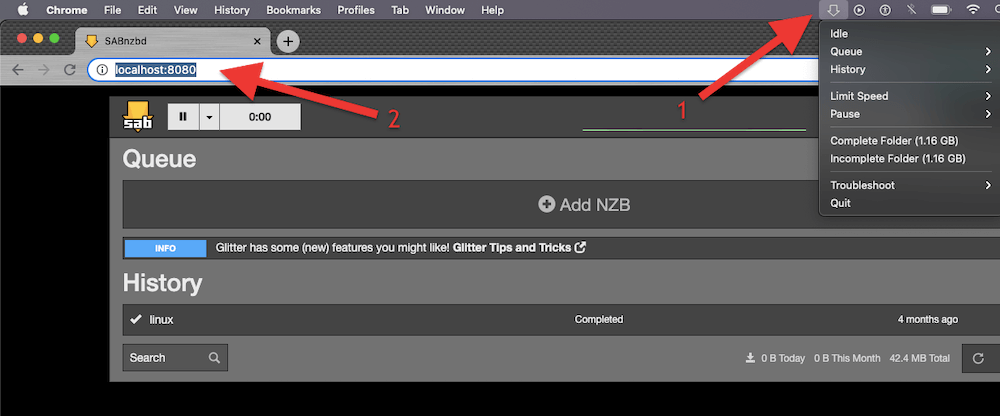
- Login to the SABnzbd user interface. If required, use your username and password.
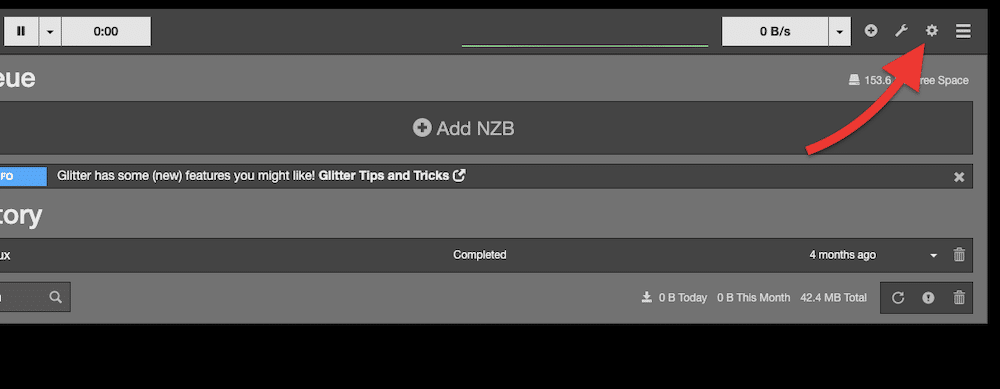
- Once logged in, click the gear icon or the config menu to access the configuration settings.
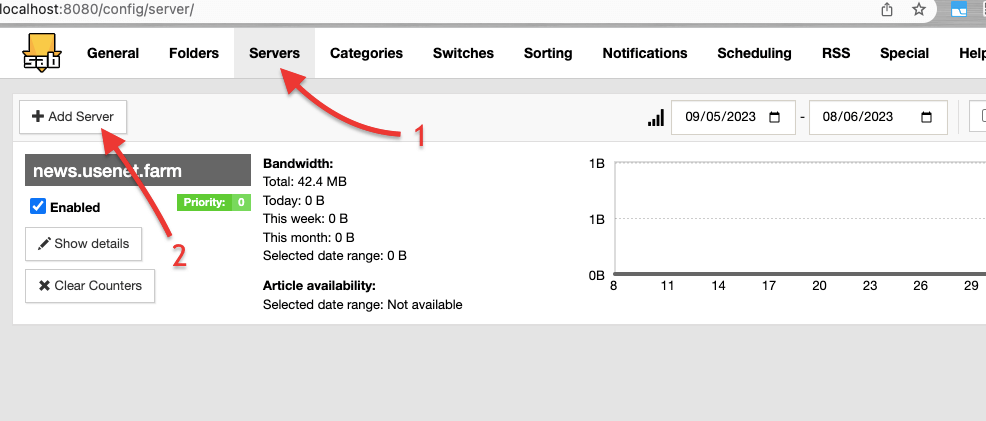
Select the “Servers” (1) category or tab in the menu. This is where you configure the Usenet server settings. Find and click on (2) “+ Add Server.”
Get the Server details.
- SABnzbd will prompt you for the following details of your Usenet service provider.
- Server name or address. This is the hostname or IP address of your Usenet server.
- Server port numbers. The port number to connect to the server. The default ports are 563 for SSL-encrypted connections and 119 for non-encrypted connections.
- Username and password. These are the login credentials provided by your Usenet provider. They are required to authenticate and access the Usenet server.
- To get this information go to your Usenet service provider. Find “Your Credentials” page (1) > choose SABnzbd, as your Usenet client (2) > Credentials (3).
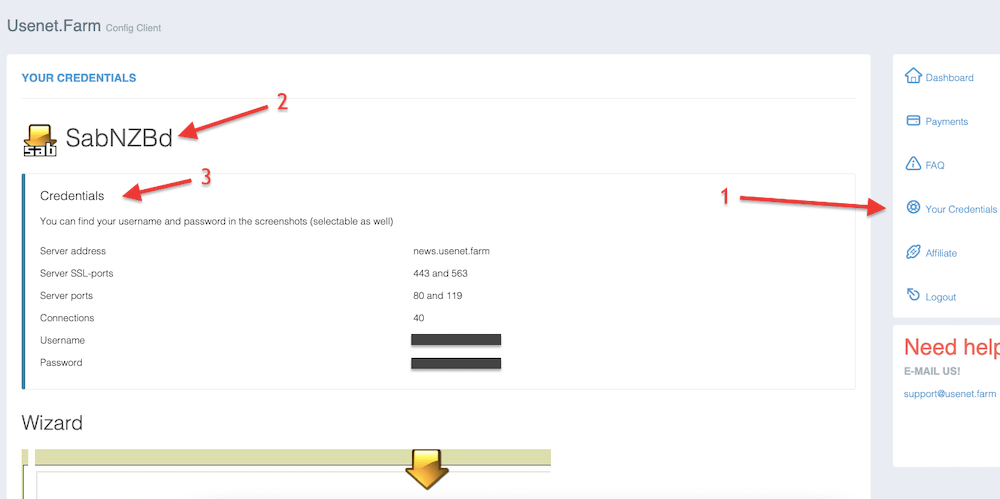
Record this information in someplace safe and go back to the interface. Fill in all recorded information on SABnzbd Config > Server > “Add Server” > Test your Server connection (1) > Ensure the results are “Connection Sucessful!” (2).
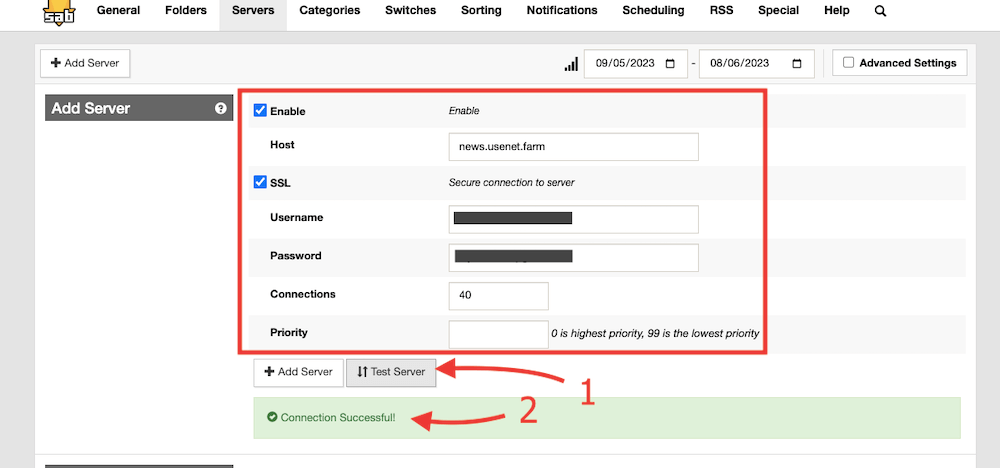
If the connection test is successful, you can further configure it according to your preferences. This includes setting up download folders, defining post-processing scripts, adjusting bandwidth limits, and customizing other advanced options.
The SABnzbd client uses NZB files to download content from the Usenet (just like the uTorrent client uses .torrent files to download from P2P). With NZB files, you can initiate and manage downloads. Find an NZB file from sources like Usenet indexing websites, NZB search engines, and Usenet communities, and then import it into the client. For more on this topic, check out our latest guide on how to start with Usenet.
a. Queuing and Prioritizing.
The download queue shows all the files or NZBs queued for downloading. The queue is processed sequentially, with each item being processed individually.
You can view and manage the queue from the SABnzbd user interface. You can also prioritize downloads based on your preference. Finally, you can manually prioritize items in the queue by adjusting their priority level.
Add NZB Files to the Queue:
- Simply drag the NZB files to the SABnzbd user interface. It will automatically add them to the queue.
- You can also manually add NZB files to the queue. Click the “Add NZB” button or the plus (+) sign in the top right corner of the user interface, and choose the NZB files to add to the queue.
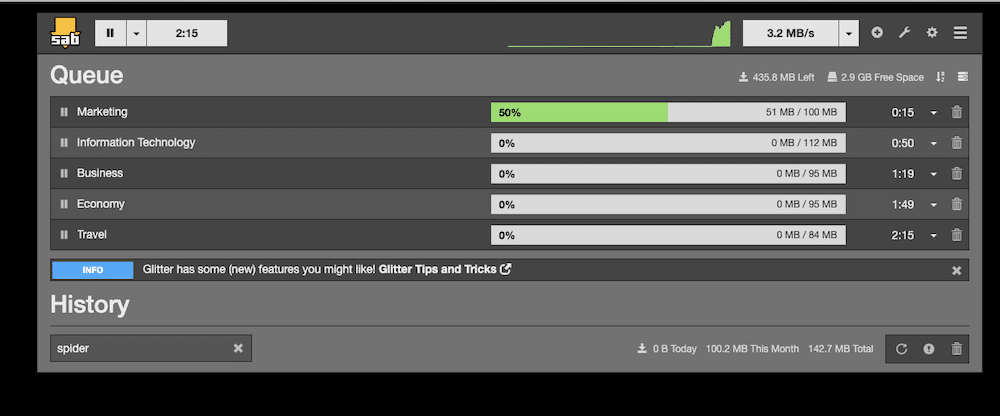
Prioritize Downloads.
- By default, SABnzbd downloads in the order the NZB files appear in the queue. But you can change this and prioritize downloads based on importance.
- To prioritize a download, click on the up or down arrows next to the item in the queue to adjust its position. Higher-priority items will be processed before lower-priority items.
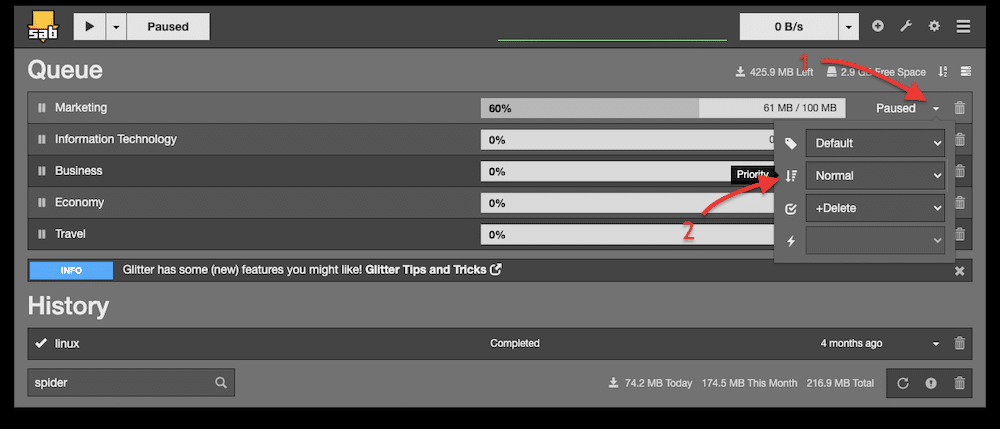
- To assign a priority label, right-click on the item in the queue, select “Priority,” and choose the desired priority level. You can choose the priority levels (in order of importance): Force, High, Normal, Low, or Stop.
b. Adjusting download speed and connections in SABnzbd
SABnzbd allows you to control the download speed and the number of connections to the Usenet server. You can adjust these settings based on your bandwidth and the Usenet provider’s limits.
Adjust download speed in SABnzbd.
- To specify the percentage of your internet connection’s speed that SABnzbd should utilize for downloading, do the following:
- Go to the SABnzbd config (gear icon) in the top right corner of the interface. On the “General” tab (1) > find “Tuning” (2) > set the maximum line speed (3) in MB/s. Leave blank for unlimited.
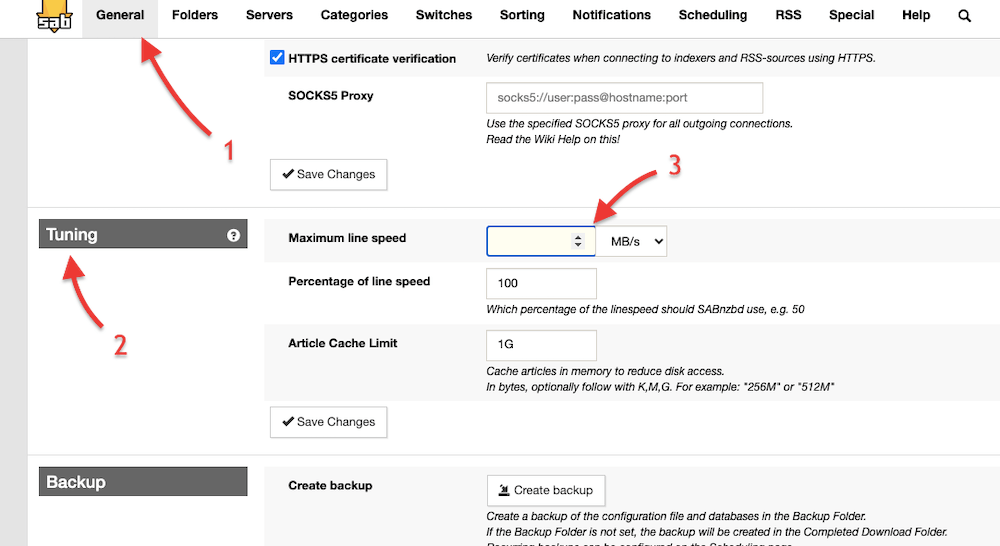
- Click “Save changes” > and return to the main SABnzbd interface.
- On the top bar, you will find a shortcut for easier bandwidth control. Click on it, and define a limit for your downloads using the “green slider” based on the maximum speed line you defined previously.
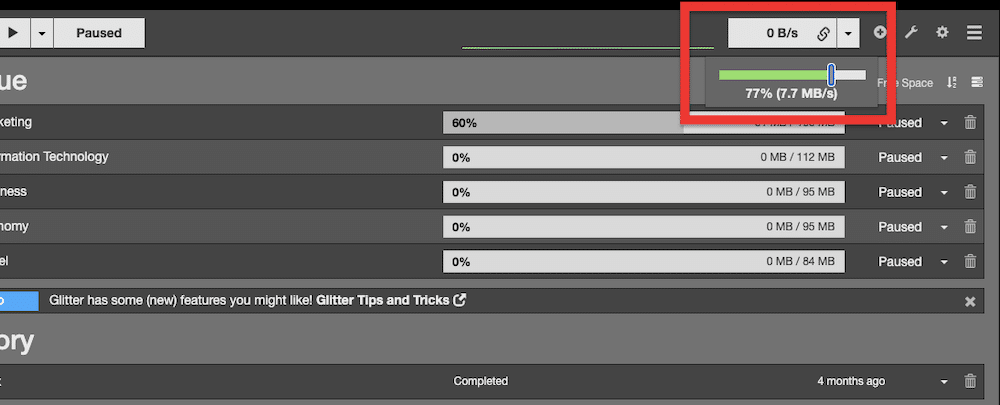
How to adjust the number of connections to the Usenet Server?
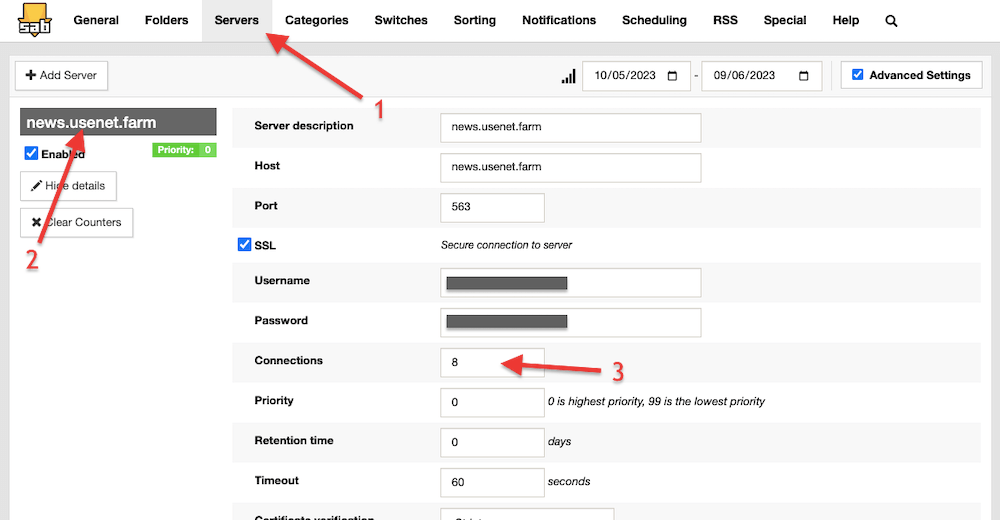
SABnzbd allows you to set the maximum number of connections that SABnzbd establishes with the Usenet server. We recommend setting this value based on your server’s recommended or allowed maximum connections. For this, you’ll need to check your Usenet service provider.
- Go to the SABnzbd config > Servers (1) > Select the Usenet server (2) > On “Connections” (3) > change the number of your desired connections.
Managing download folders and storage
SABnzbd allows you to specify download folders to store completed (and incompleted) downloads. You can choose a default folder or set up specific folders based on categories or tags (more on this in the next section). Additionally, you can configure storage settings to delete or move completed downloads to another location automatically.
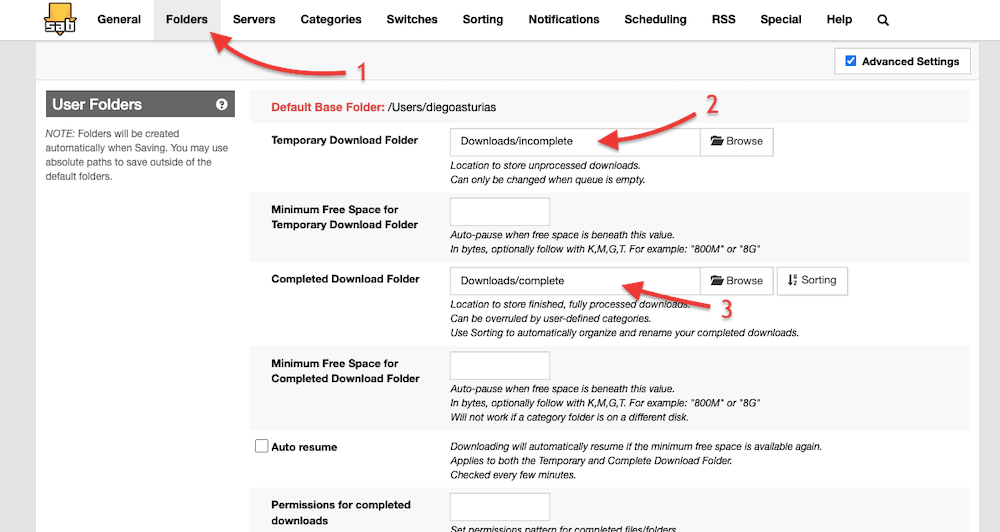
- Go to the SABnzbd config (gear icon) at the top-right of the page > Look for and click on the “Folders” (1) tab.
- In the Folders tab, you’ll find various folder options, divided into “User Folders” and “System Folders.” Here, you can see the “Default Base Folder,” which is the folder where SABnzbd will store its files.
Important User Folders:
- Temporary Download Folder. Specifies the location where SABnzbd will store incomplete downloads.
- Minimum Free Space for Temporary Download Folder. Sets a threshold of free disk space for the Temporary Download Folder.
- Completed Download Folder. Specifies the location where SABnzbd will store completed and fully processed downloads.
- Minimum Free Space for Completed Download Folder. Similar to the Temporary Download Folder setting, this sets a free disk space threshold for the Completed Download Folder.
Key System Folders:
- Administrative Folder. Sets the location for the queue admin and history database.
- Backup Folder. Specifies where backups of the configuration file and databases are stored.
d. Categorizing and sorting downloads.
With SABnzbd, you can use tags and categories to organize and manage your downloads. Assign them to specific NZBs or set up rules to automatically designate them. This can help in filtering and sorting downloads based on your preferences. To set up tags and categories, follow these steps:
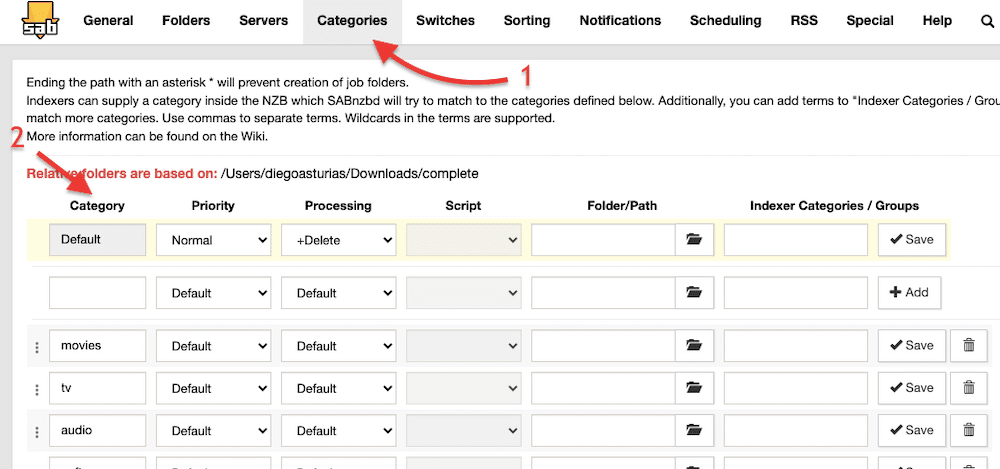
- Go to the SABnzbd config (gear icon) at the top-right of the page > Look for and click on the “Categories” (1) tab.
- You’ll see a list of (2) categories (which you can customize) and other settings like priority, processing, script, storage location, indexer/categories, etc. By configuring these category settings, you can control various aspects of your downloads based on their assigned categories in SABnzbd.
With SABnzbd, you can also set up sorters to automatically organize your completed downloads. Sorters help arrange files into specific folders based on criteria such as series, seasons, movies, etc.
- To configure sorters, go to SABnzbd config (gear icon) > “Sorting” (1).
- Click on + Add Sorter (2) > Fill in all your sorting configuration (3).
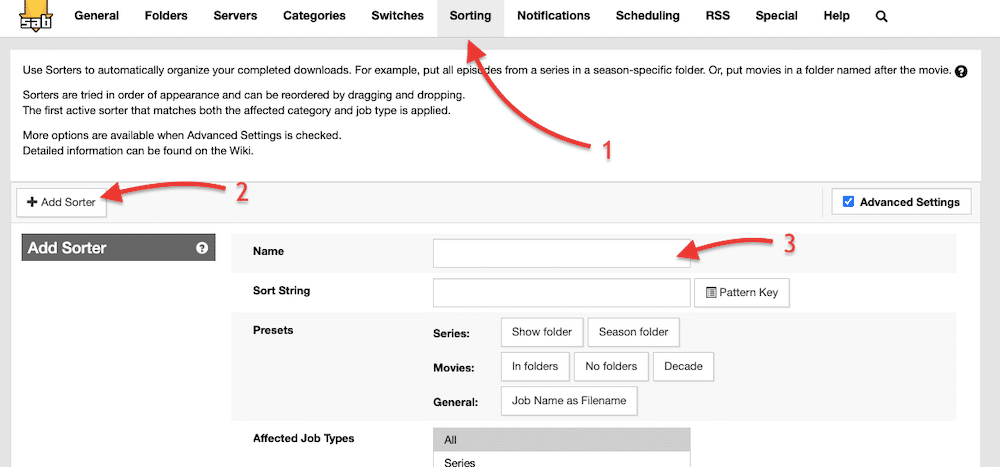
- Configure the sorter with a name, presets (category), affected job type, minimum filesize, affected categories, folder/path, and options.
- Once configuring the sorter settings, click “+ Add Sorters.”
5. Setting SABnzbd with Sonarr and Radarr.
Radarr and Sonarr are two popular media management (PVR) tools that fit perfectly well with what the SABnzbd client does. These tools automate the searching and downloading media (TV shows and movies) process and can be integrated with SABnzbd as their downloading client.
Here’s how the integration works:
- Sonarr (for TV shows) or Radarr (for movies) monitors your desired media for new episodes or releases.
- When a new episode or movie becomes available, Sonarr or Radarr will request SABnzbd to download the corresponding NZB file.
- SABnzbd, acting as the download client, receives the request from Sonarr or Radarr and initiates the downloading process.
- SABnzbd connects to your configured Usenet or Newsgroup provider to download the files specified in the NZB file.
- Once the download is complete, SABnzbd verifies and processes the downloaded files. It may repair, extract, or unpack the downloaded content if necessary.
- After the processing is finished, SABnzbd notifies Sonarr or Radarr that the download is ready and provides the location of the downloaded files.
- Sonarr or Radarr picks up the completed download information from SABnzbd and moves or renames the files to the appropriate location within your media library.
How to integrate SABnzbd with Radarr or Sonarr?
- To integrate SABnzbd with Sonarr/Radarr, you’ll need to gather certain information from SABnzbd.
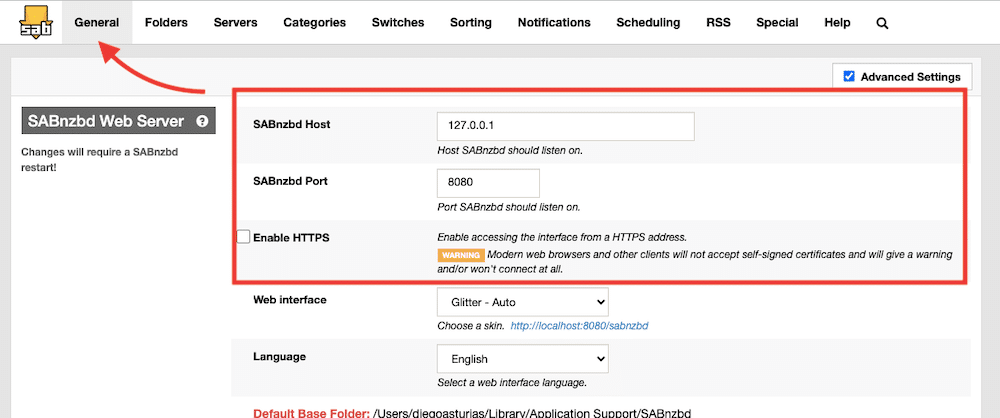
- You can find this information by going back to the SABnzbd client. Go to SABnzbd config (gear icon) at the top-right of the page > “General” > SABnzbd Web Server > and collect the host and port information. If HTTPS is enabled, you must also enable it on the Radarr or Sonarr client.
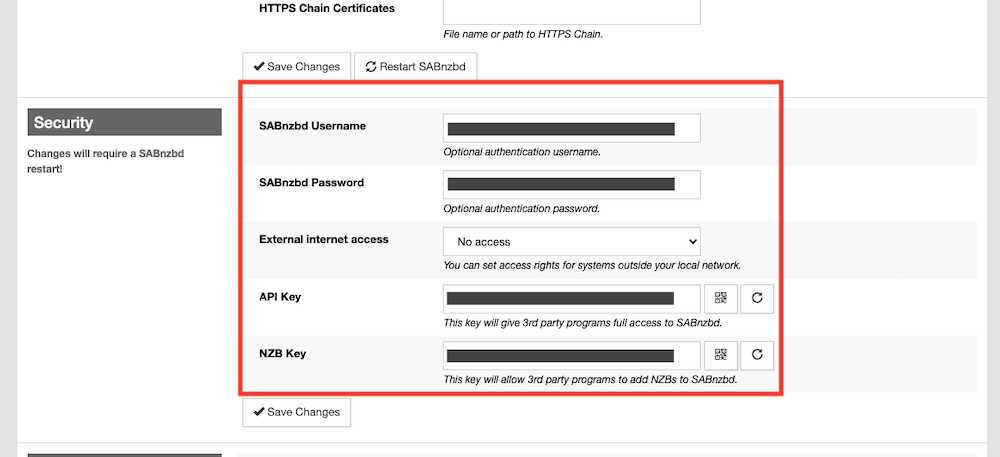
On the same “General” tab, scroll down until you find the “Security” tab, where you can collect the API key and credentials. Collect the SABnzbd username, password, API key, and, if needed, NZB key.
- Now go to yourSonarr and Radarr app. These apps have a predefined configuration for popular Usenet (and Torrent) clients.
- To add SABnzbd as Radarr’s or Sonarr’s download client, go to Sonarr/Radarr’s left hand menu and find “Settings” > Download Clients > Click on (+) or Add Download Client > Under the Usenet group, find and choose SABnzbd.
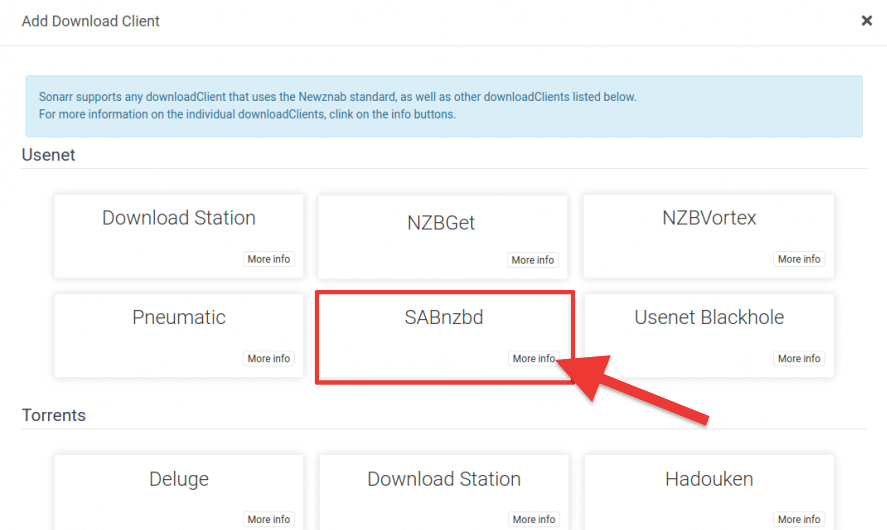
- Select SABnzbd. The Radarr/Sonarr “add Download client” will ask you to configure network parameters like the host (or IP address), credentials, ports, and API key.
- Enter them on the required fields, test the connection between Sonarr and SABnzbd, and “Save” your configuration.