Here you will get step by step instructions on how to configure your Radarr on your Synology NAS
Open up Radarr and click on settings
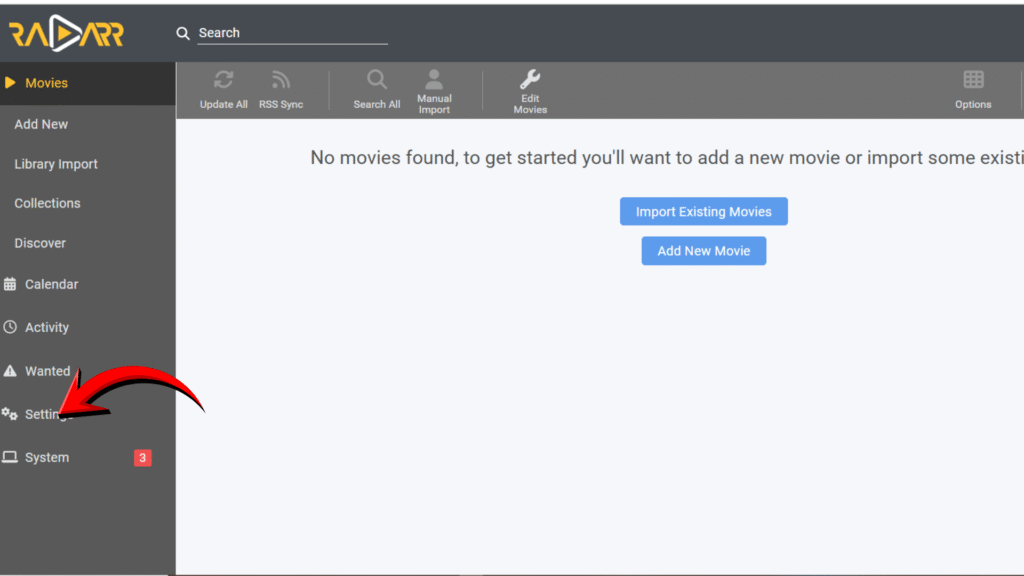
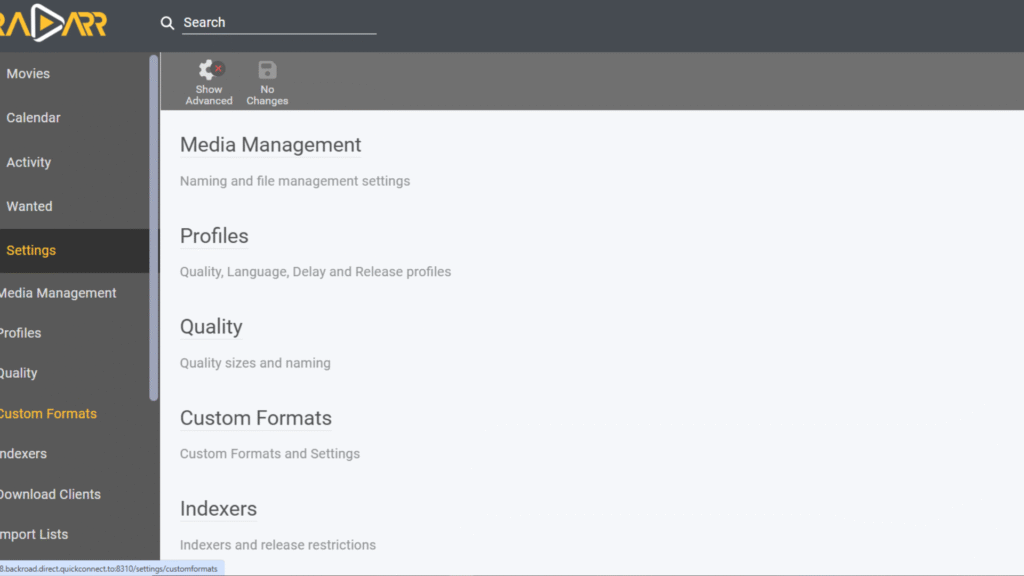
Click on media management
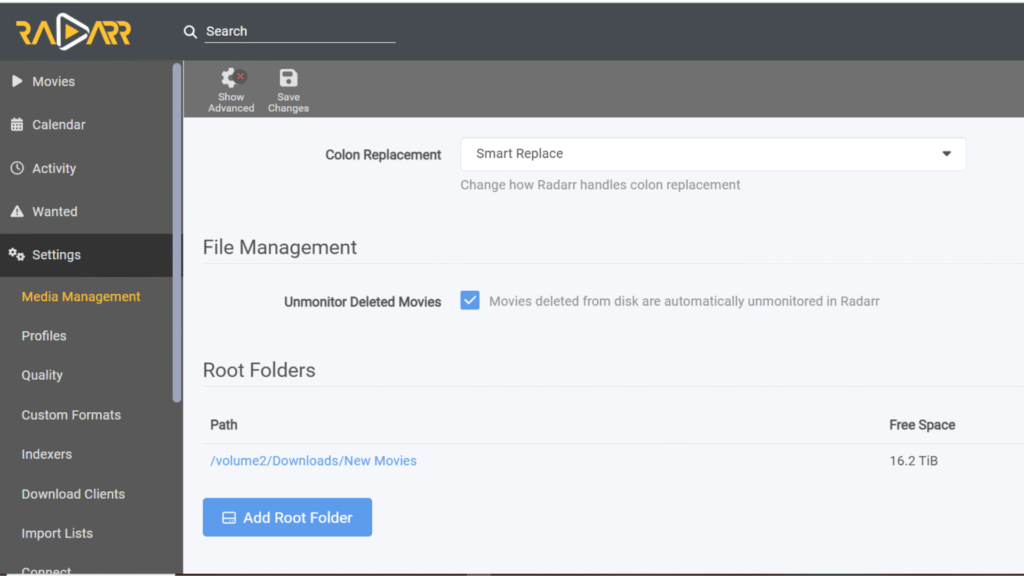
Click on root folder your root folder should be set to where your movie download folder is located then click save at the top of the page when your done.
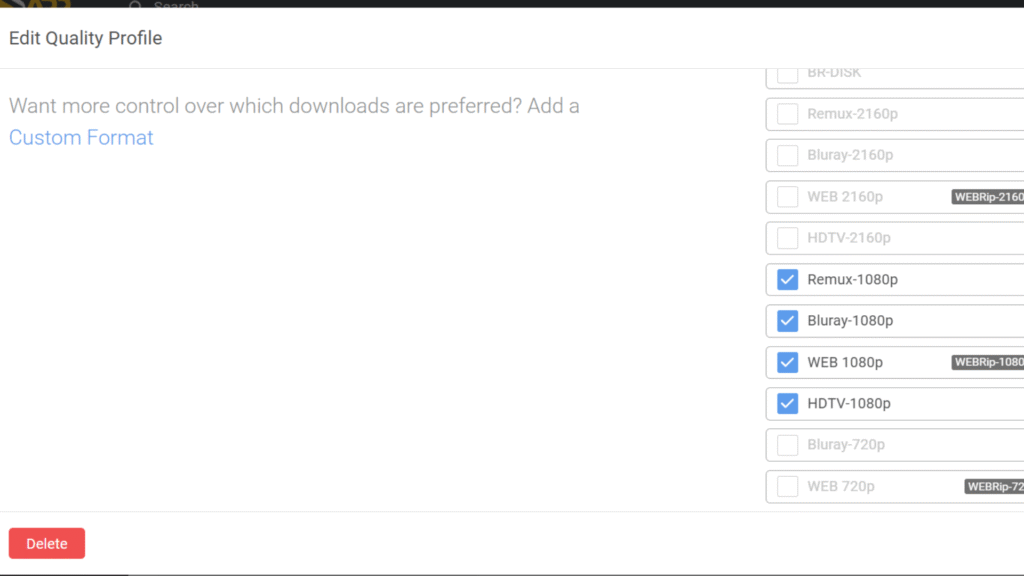
Click back then open up the quality section then check the quality you want Radarr to download
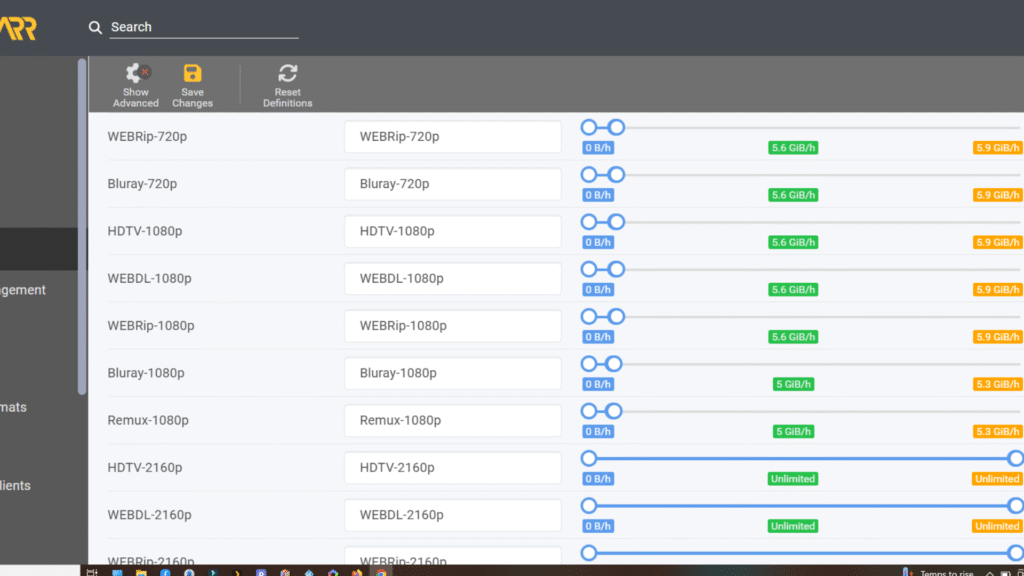
Next choose the size you want Radarr to pick up just slide it to you get the size you want.
After each step click save at the top after you made your selection.
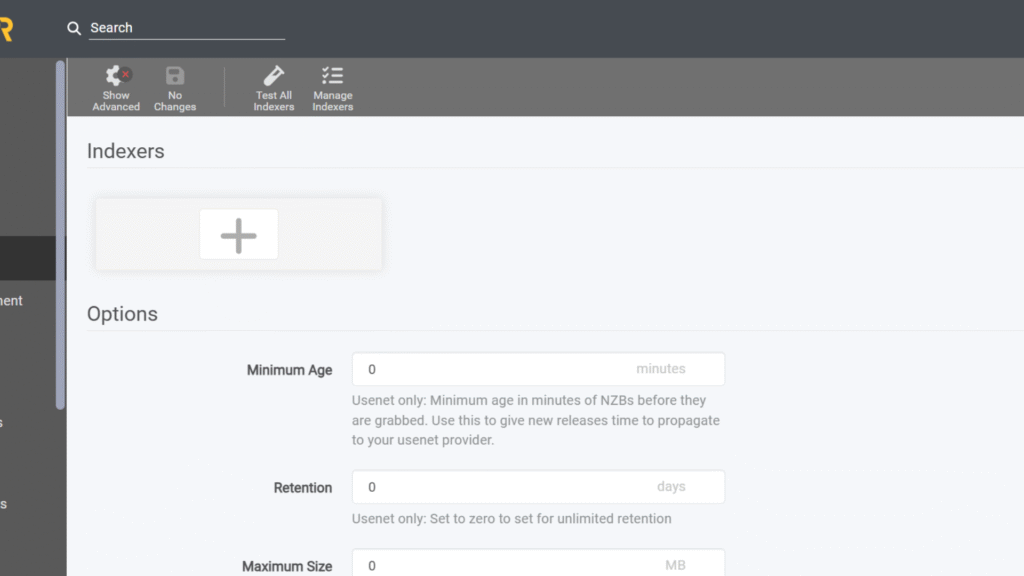
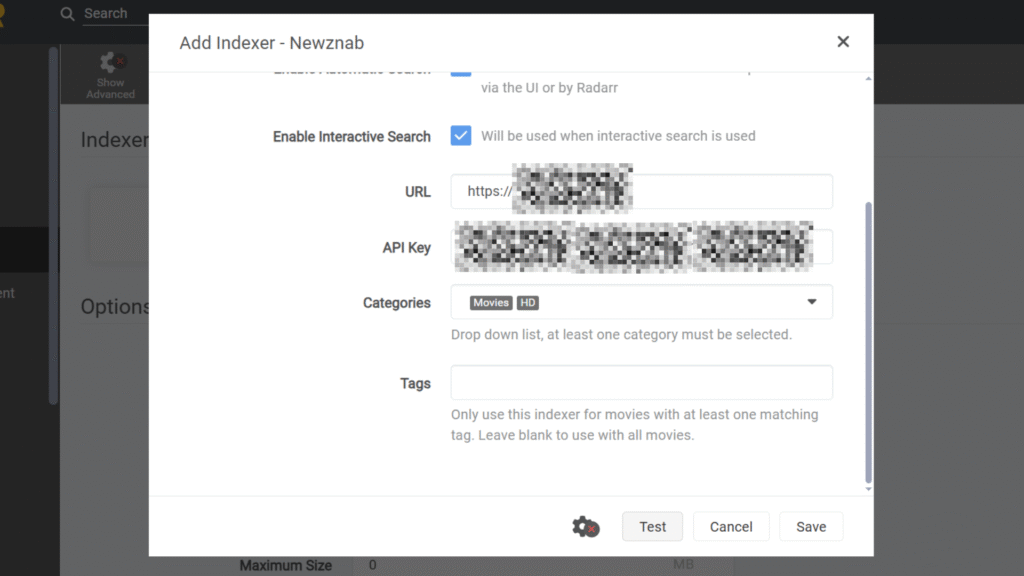
Click back then click Indexer, next click on add indexer.
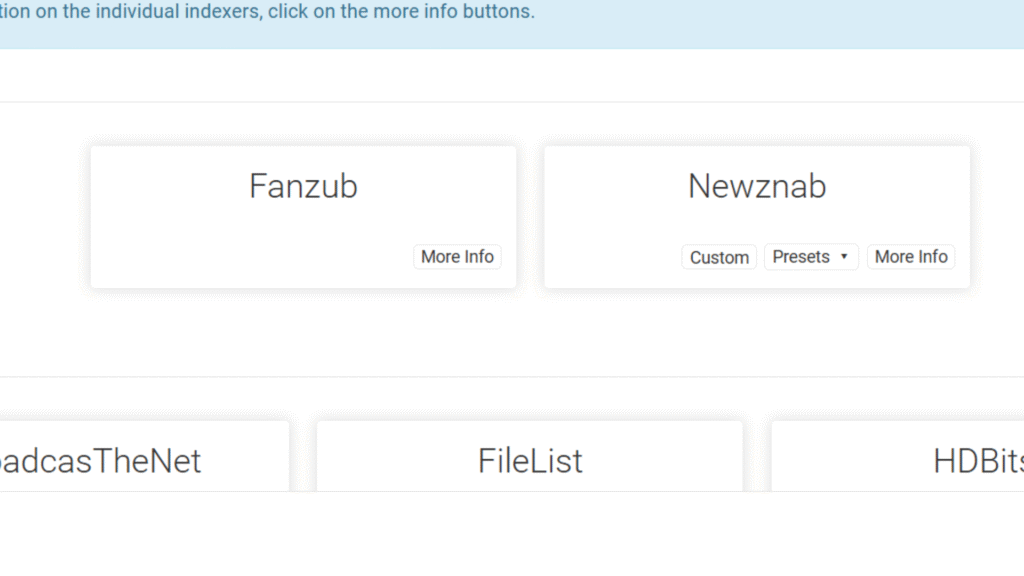
Now click on Newznab
Now add your Indexers URL and API Key you can find that in your account page in the indexer you subscribed to.
Then add the name of the folder your TV shows are going into.
Then click test if its good click save.
Click back now we are going to click on Download clients and click on add then click on SABNZBD
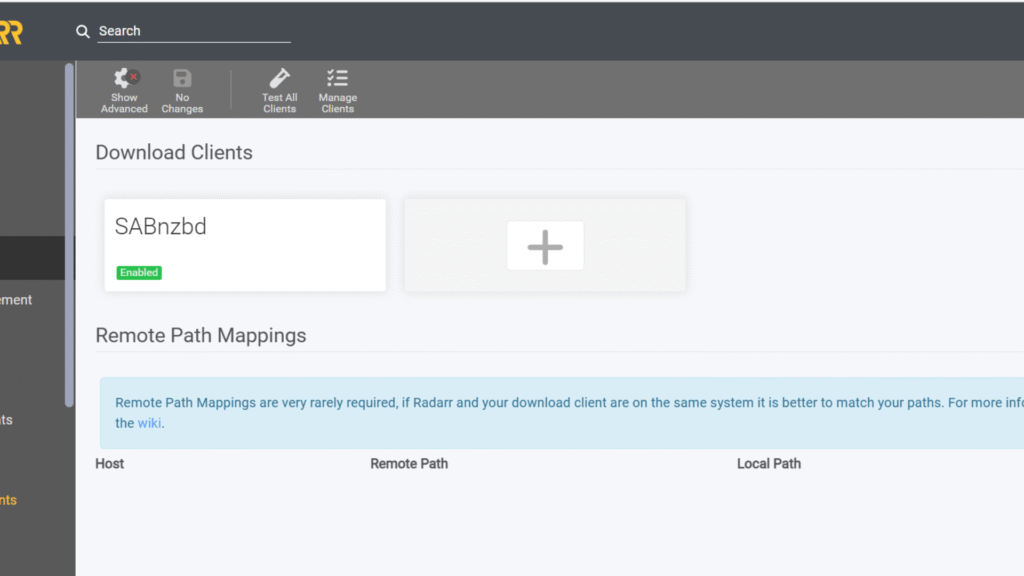
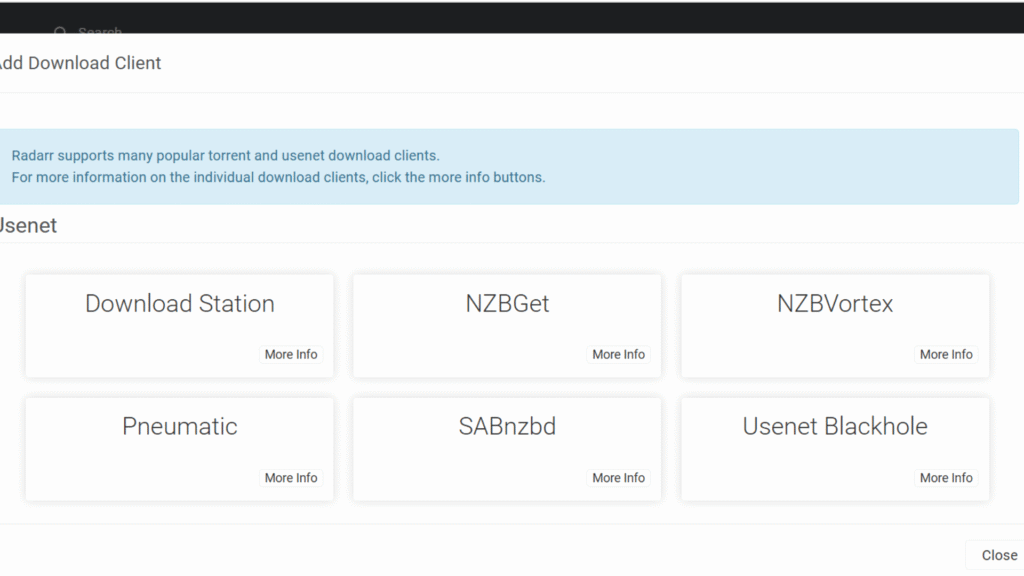
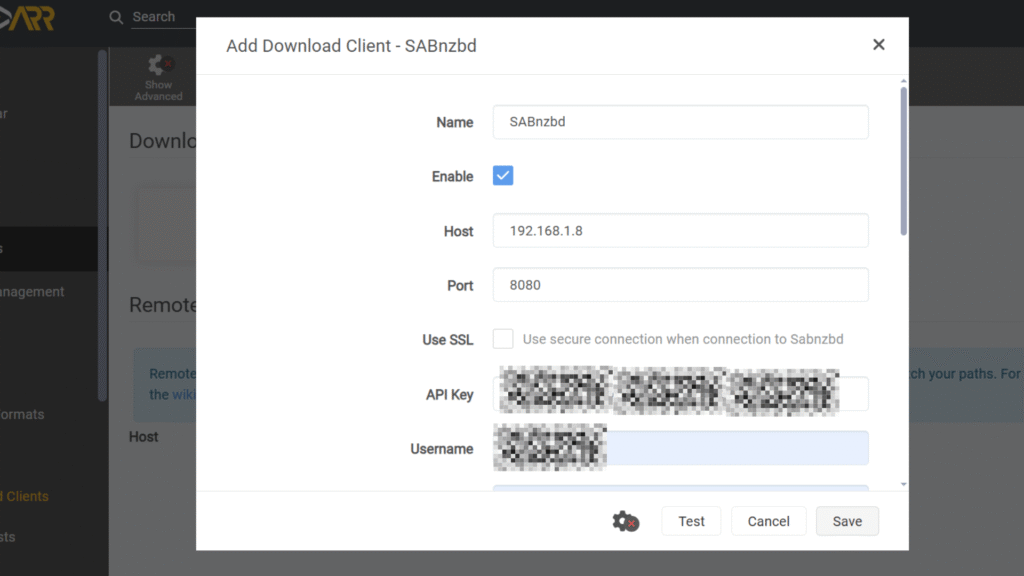
Now add your Host:The IP address of the machine running SABnzbd (e.g., 192.168.x.xx) , Then add your port 8080 , Then add your API Key and username from SABnzbd then click test if its good click save.
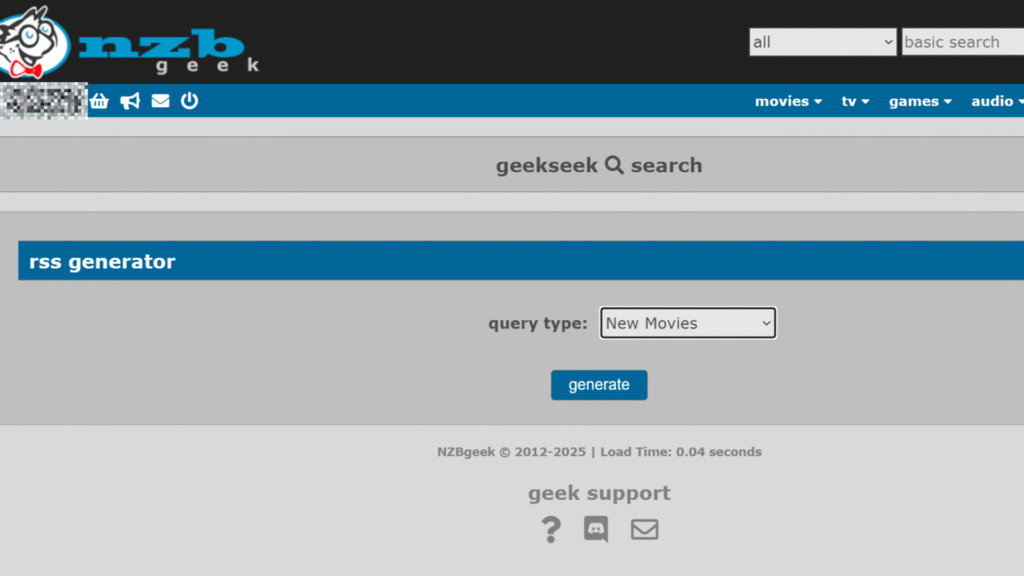
Next we need to add a RSS feed your indexer has a RSS feed generator every indexer is different I always pick the new movies category then click generate
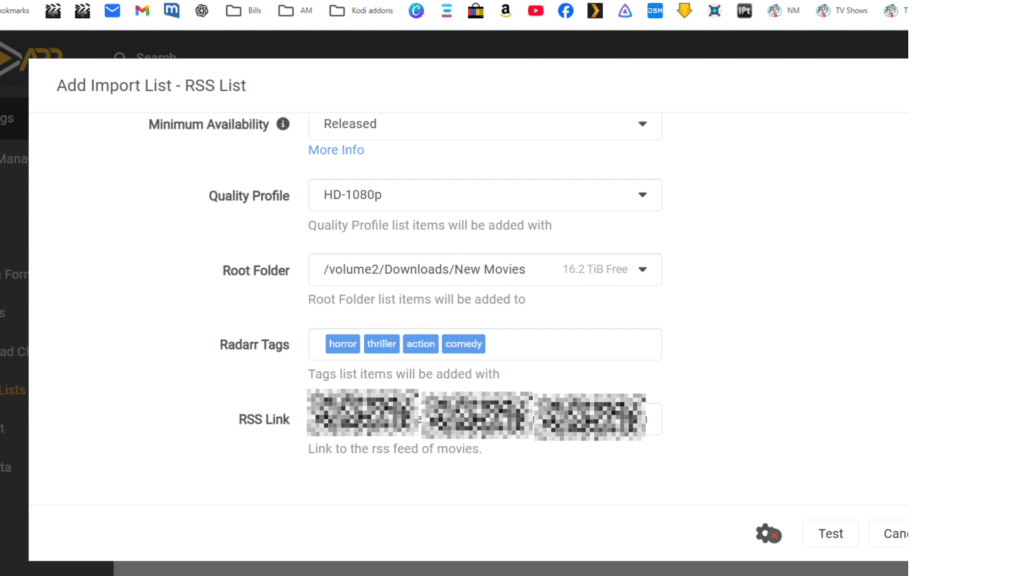
Next go back click on import list then click on RSS List
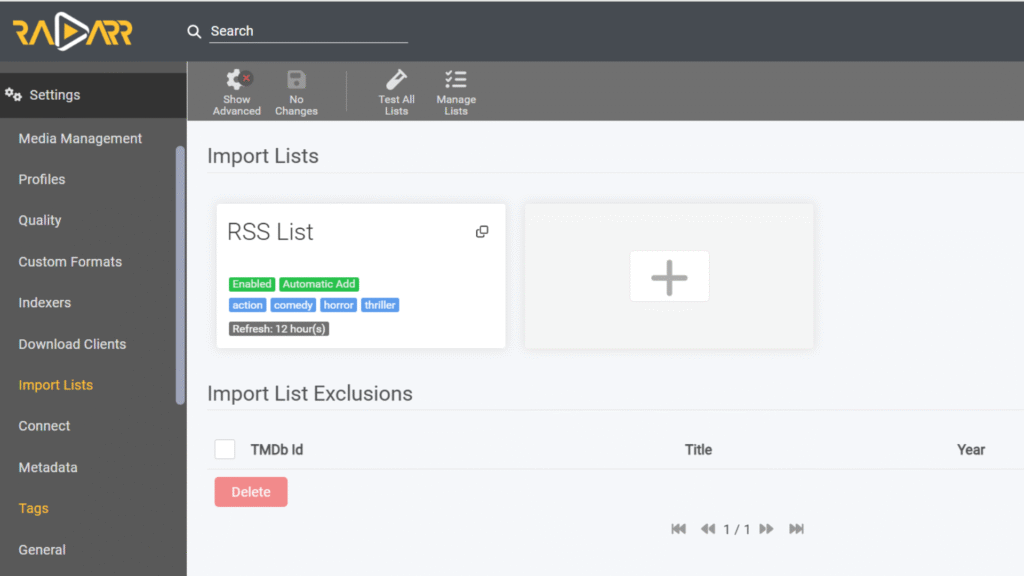
Add your RSS link then click Test and if its good then save