
VSeeBox provides Heat Live app for more than 1,300+ Live TV channels for users to enjoy happiness from watching tv without further subscriptions, which makes VseeBox a game-changer for TV entertainment.
We recently received many new users enquiring about how to use the Heat Live app. Today this article will show you all the functions of Heat Live and how to use it.
1. How to use the EPG TV Guide
2. How to add channels to favorite
3. How to use the Search function
4. How to use the 7 Days Playback feature
5. How to clear the history record
6. How to remove network speed displaying on the top right corner
7. How can I update the Heat Live app
1. How to use the EPG TV Guide
Let’s start with the EPG function first. Heat Live has two different styles of EPG TV Guide, including Normal EPG and Classic EPG. Normal EPG guide is easy for navigating between channels and categories, meanwhile, the Classic EPG guide is easy for navigating the whole timeline of the channel program.
Before using the EPG:
Please check your vSeeBox to see if the Time, Date and Timezone are set correctly. You can visit Home Screen, Settings, Device Preferences, Date & time. If it still shows the incorrect time, please turn off the “Automatic date & time” function, and turn it on again. Then it would update to the correct one.
Normal EPG
To access Normal EPG, you can open the Heat Live app, on the Live TV screen, you can press “OK” on your remote, and then the Normal EPG will open. In the Normal EPG, you can see there’s a Menu, Channels, Categories, and Channel List.
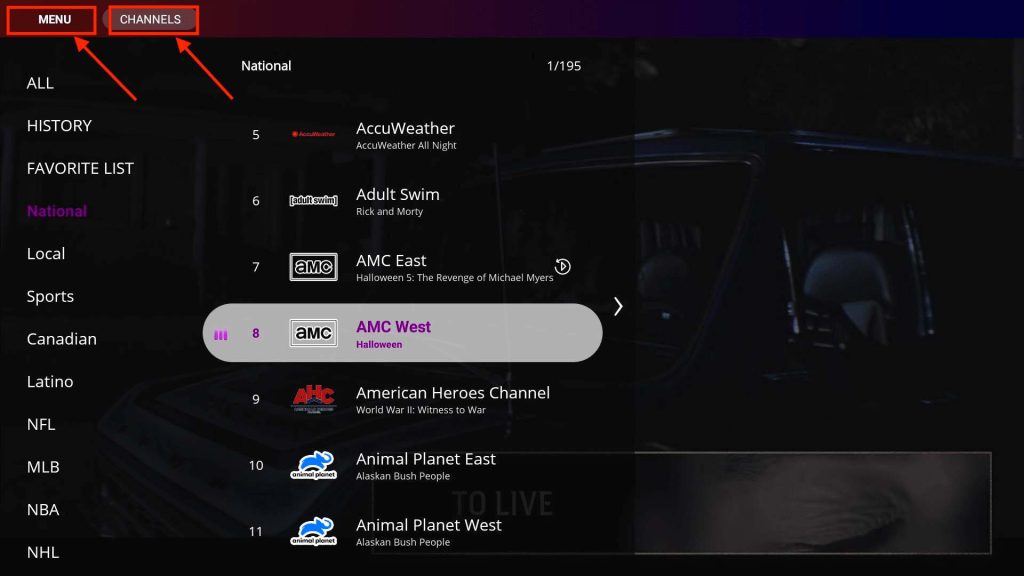
Let’s take a look at the Channels part. You can find all the channels by categories on the left-hand side, with National, Local, Sports, Canadian, Latino, NFL, MLB, NBA, NHL, and PPV sections. You can press the “up” and “down” buttons on the remote to find channels between different categories. Click “OK” to select the channel.
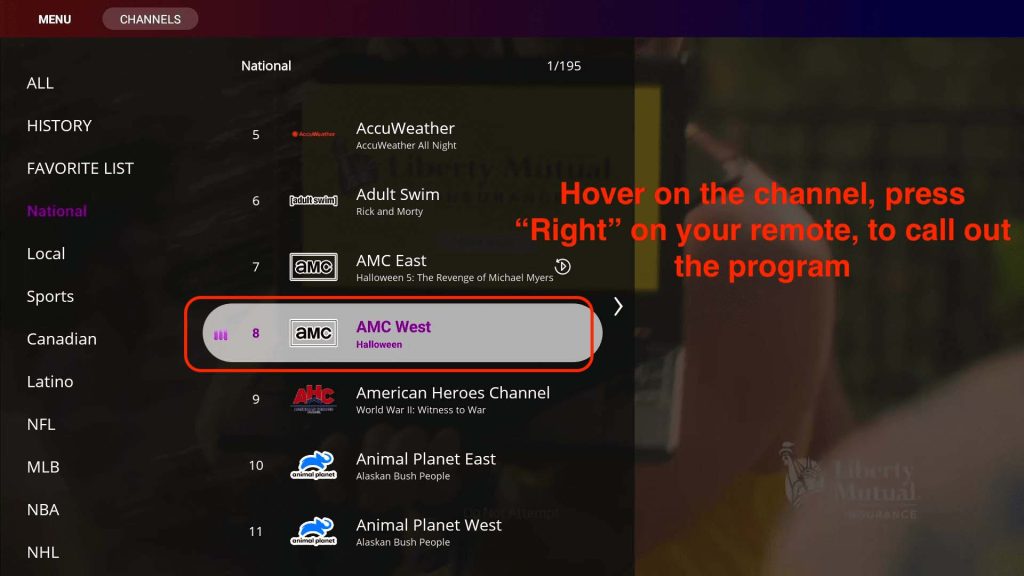
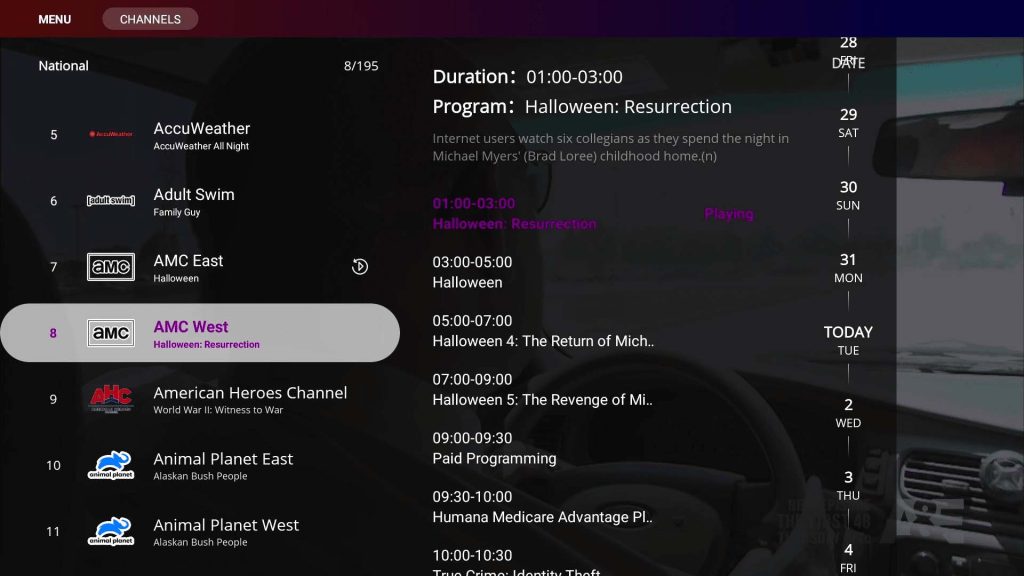
You can get more information about the channels. Press the “right” button on your remote when you hover over the tv channel, and a new column will show on the right-hand side. It indicates the Program Name, Duration, also with those upcoming events or previous events. You can click the “up” and “down” button to navigate around events and different dates.
Classic EPG
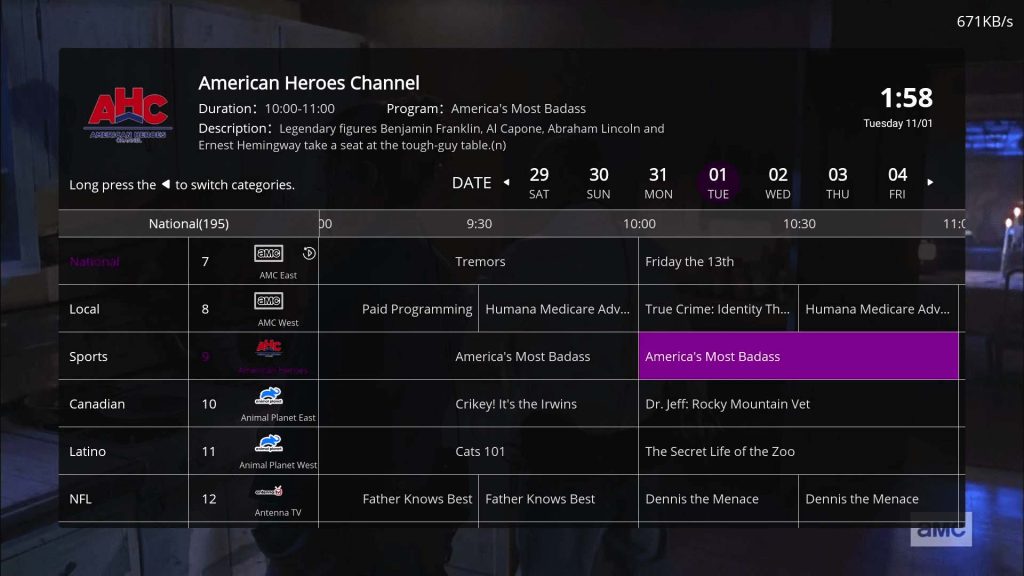
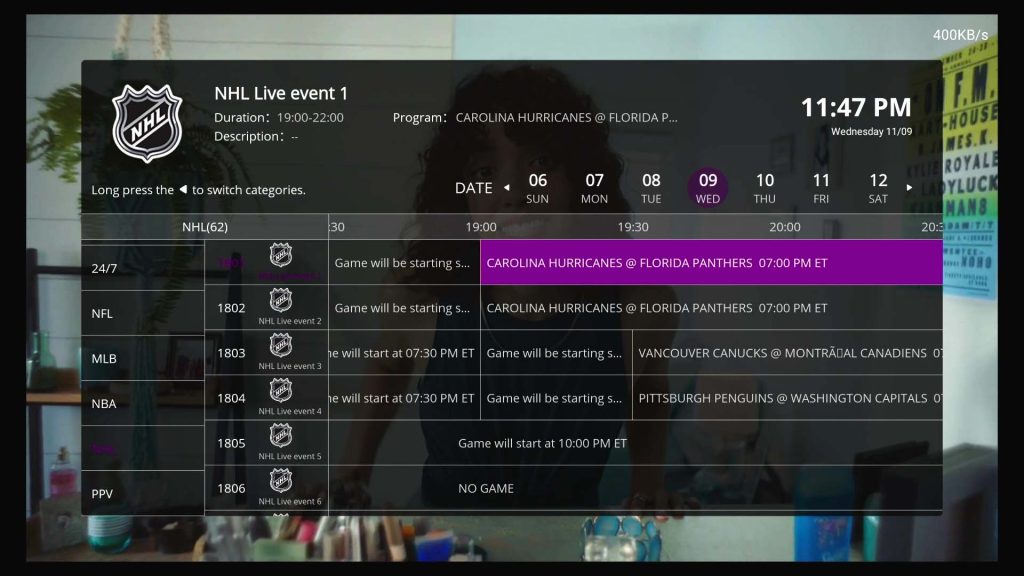
To access Classic EPG, you can simply press the “EPG” button on the remote to call the Classic EPG out. On the Classic EPG interface, you can also find the Channel Logo, Channel Name, Program name, Duration of the current program and program description. It’s in timeline style, and you can navigate between different times and dates. Long Press the “Left” button to switch to different categories.
For Sports channels, you can find the games, and understand when the game plays easily. Take this NFL game as an example, on the Classic EPG, you can see that before the game starts, it shows “game will start at the specific time”, also 30 minutes before the game starts, it shows “game will be starting soon at the specific time”, and when the game plays, it shows “Team A @ Team B and the time”.
2. How to add channels to favorites
You can add channels to favorites to find them easily on your favorite list. There are two ways you can achieve this function.
1st way:
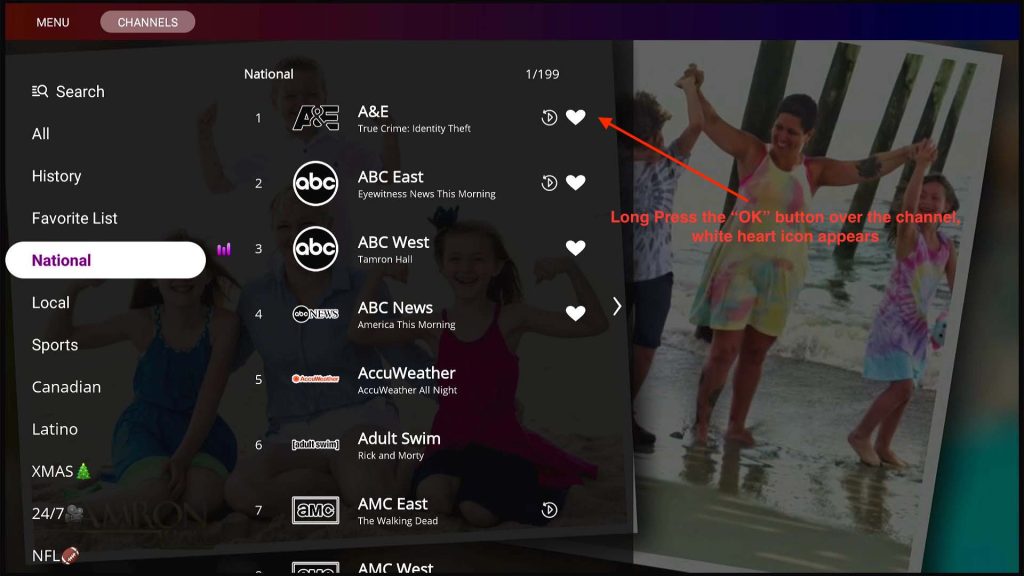
Long press the “OK” button of your remote while hovering on the channel, white heart icon appears when it successfully added to Favorite List. Vice Versa, long press the “OK” button over the channel again to cancel favorite.
2nd way:
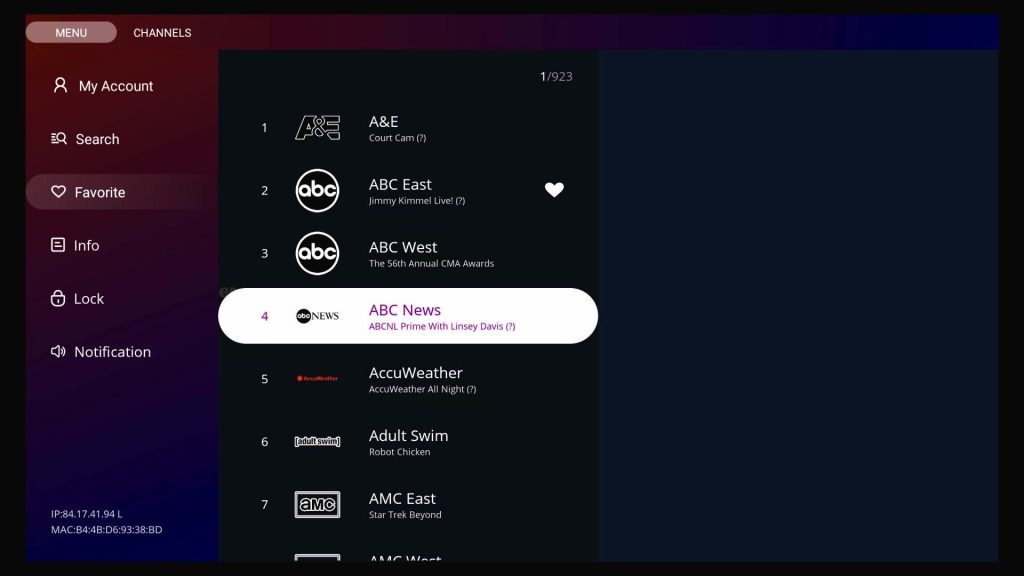
Click “OK” on your remote, visit the MENU page, and then you can see the Favorite tab. In the Favorite tab, it will list all the tv channels. You can click the “OK” button to select the channel to favorite. Vice Versa, click “OK” again to cancel it from your favorite.
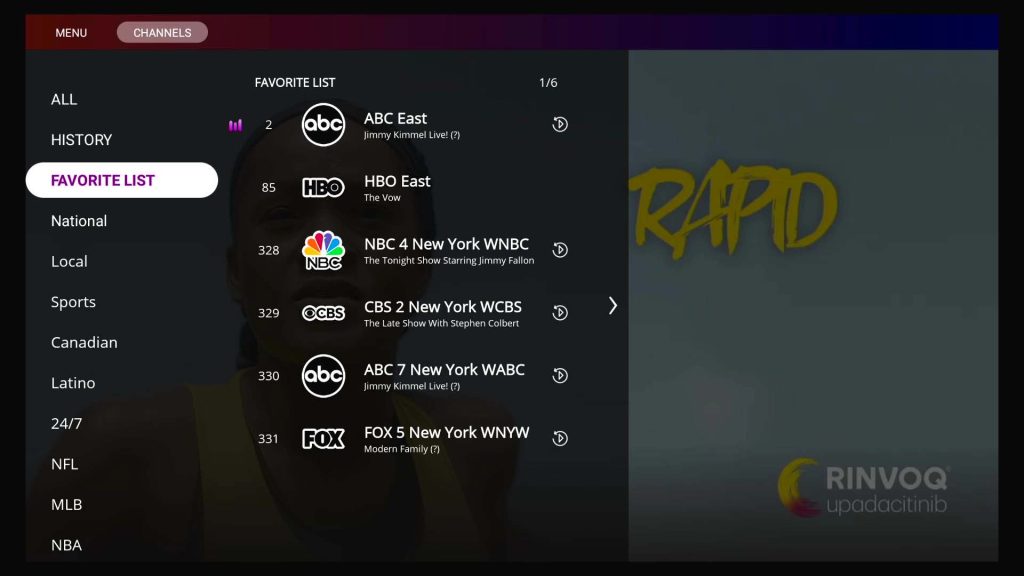
To check your favorite channels, you can click “OK” on the Live TV screen to call out the Normal EPG. On the left-hand side, there is a tab FAVORITE LIST. You can click and open the channels.
3. How to use the Search function
vSeeBox Heat Live app provides more than 1,000 live tv channels with National, Locals, Sports etc. Instead of rolling around those huge amounts of channels, you can use our Search function to find your wanted channels.
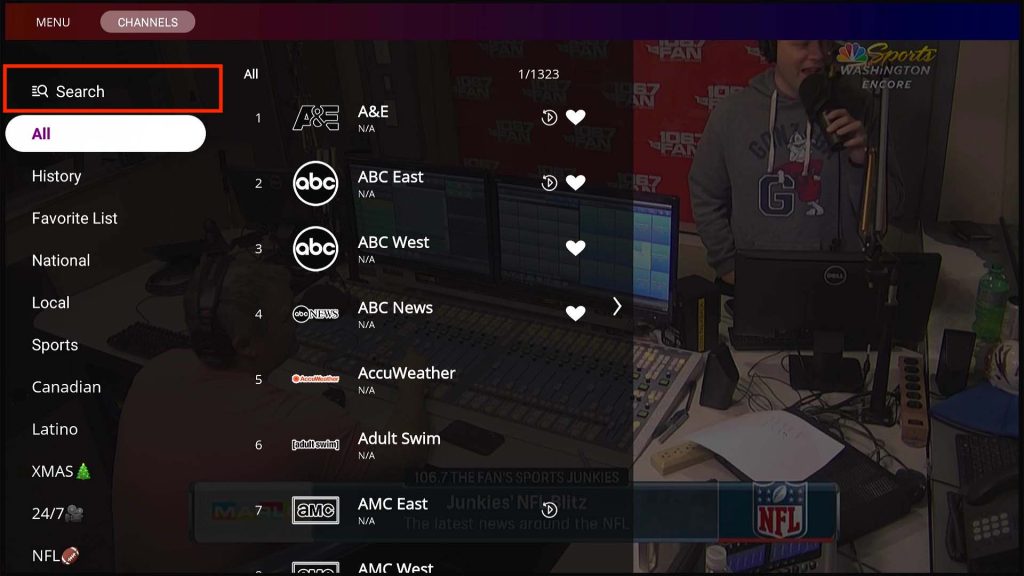
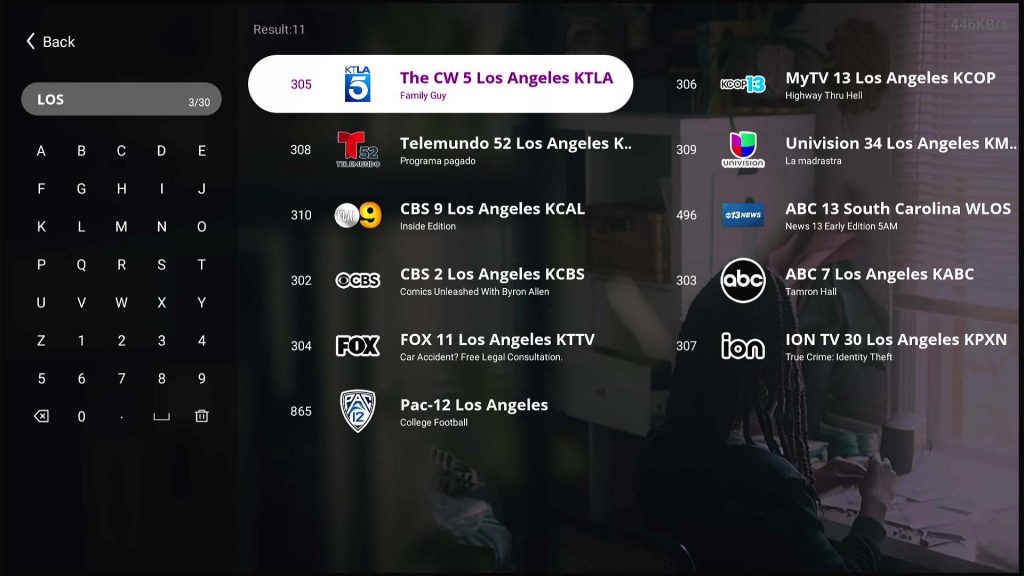
Click “OK” on your remote to open Normal EPG, you can see the search section on the top of channels section. You can search your wanted channel name, by searching part of the channel name or location name, e.g. Telemundo 52 Los Angeles KVEA, you can search “Tele” or “Telemundo” or “Los Angeles” or “KVEA”.
4. How to use the 7 Days Playback feature
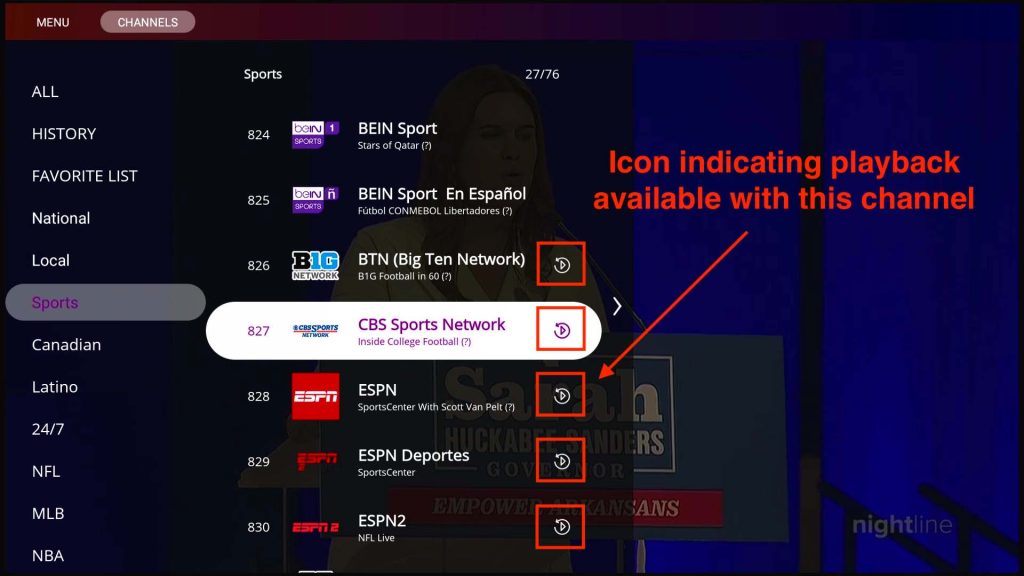
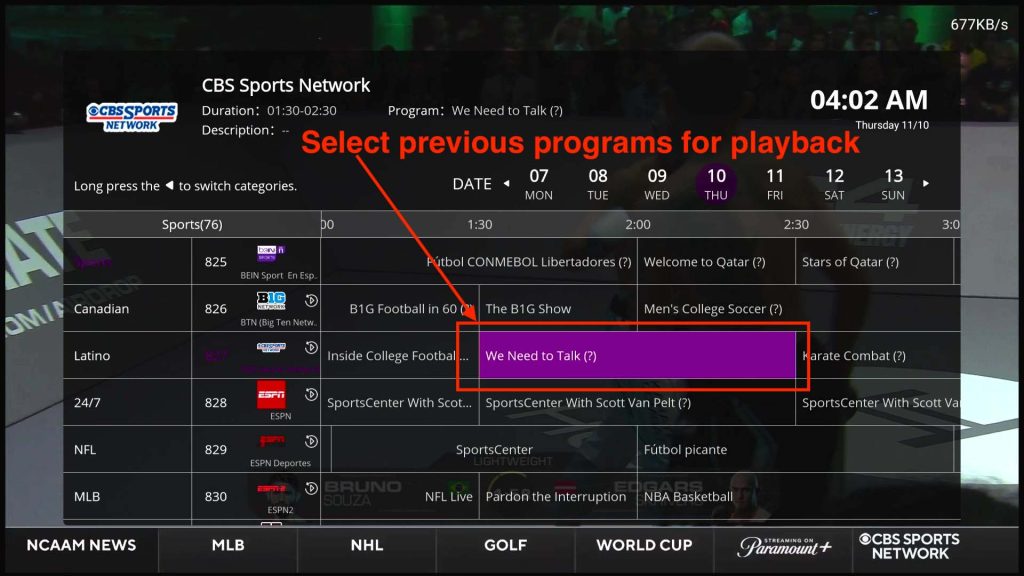
Currently vSeeBox V1 Pro model supports 7 days playback feature for over 50+ Live TV channels, and sports events like MLB, NFL, NHL, NBA and PPV. With the playback feature, you don’t need to record the program manually, you can just navigate inside EPG, select the past 7 days’ program and play. For channels that support the playback feature, you will notice that there is a “Replay” icon beside the name of the channel.
Access Playback from Normal EPG
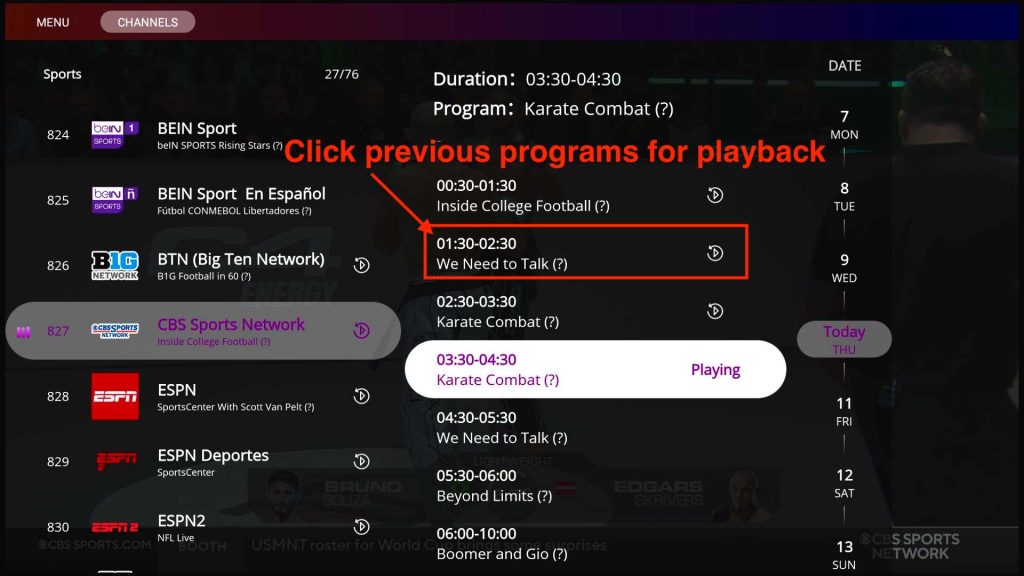
Click the “OK” button on the Live TV screen to call out the Normal EPG first. Take the BTN Big Ten Network as an example, it supports the 7 days playback feature. Click the “Right” button on your remote to show more details, you can notice that there is a current program indicating “Playing”, and previous program names with duration and a “Replay” icon beside. You can also navigate between the past 7 days by selecting the date on the right-hand side. Now click on any of the programs with the “Replay” icon, and then it will start to stream the playback of the selected program now.
Access Playback from Classic EPG
Click your remote’s “EPG” button to call out the Classic EPG first. It shows the timeline of different programs. You can navigate the past 7 days’ programs, and click “OK” to enter the playback feature.
Functions inside Playback
While watching program playback, you can keep pressing the “Left” or “Right” button on your remote to Fast Rewind or Fast Forward. You can also click the “OK” button to play or pause the program. If you want to exit from the playback, you can press the “Return” button, it will pop-up the EPG, press the “Return” button again and it will pop-up a window asking if you want to stay in playback or go to Live TV.
5. How to clear the history record
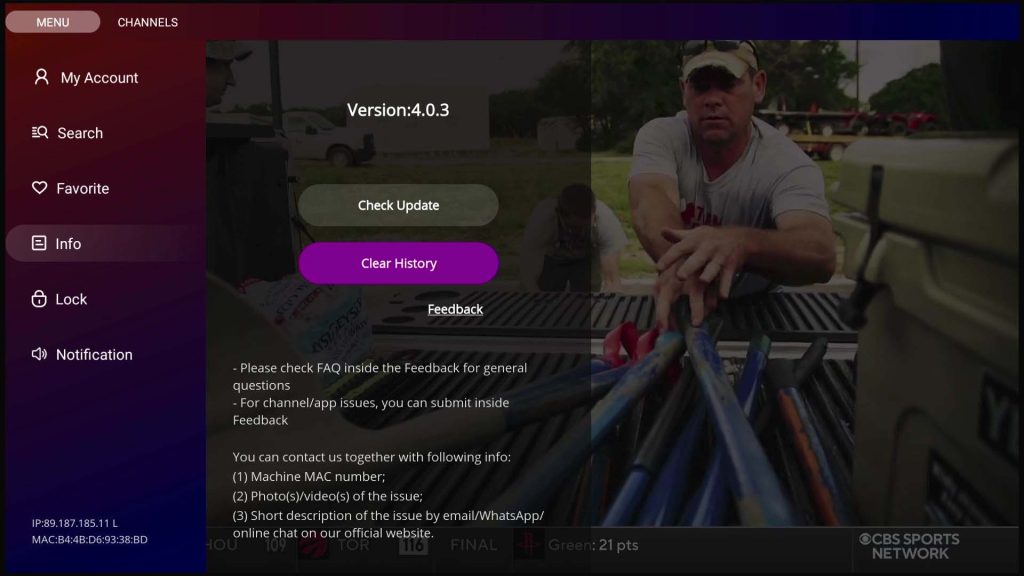
For convincing users to access previously watched channels, you can find them in the EPG history section. To delete them, please open Normal EPG, and move to the Menu Page, under the Info, there is a tab “Clear History”. Press the tab and all the watched tv channels’ history records will be removed.
6. How to remove the network speed displaying on the top right corner
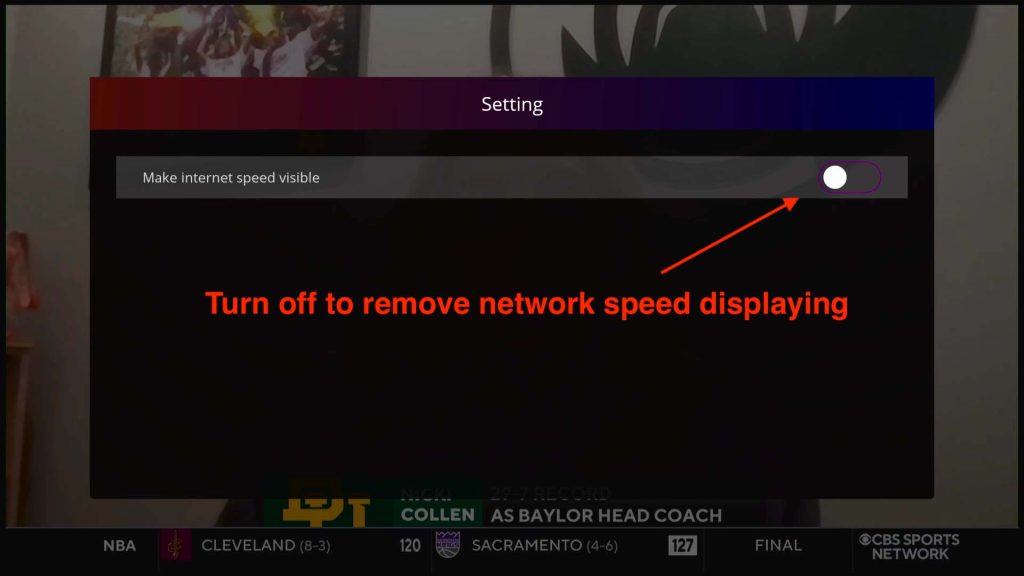
The network speed display is for users to check their network speed and network connection. To close the speed display, you can press “Menu” on the remote, then click on settings, and turn off the speed display.
7. How can I update the Heat Live app
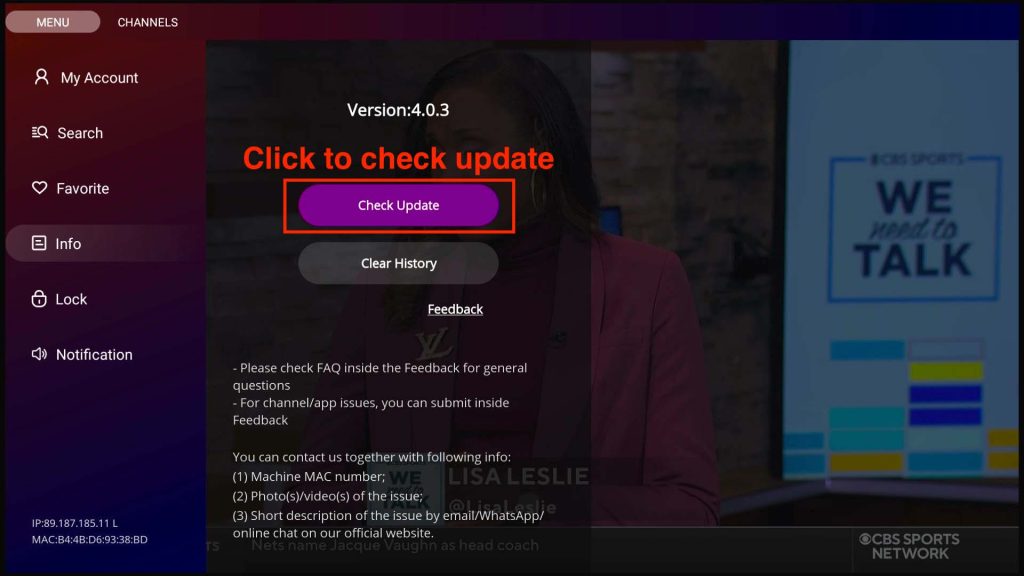
1st way: If there is a new update patch available, there will be a pop-up window to ask if you want to update the Heat Live app. Press yes and it will finish the update automatically.
2nd way: Visit the MENU page, visit the Info page, and click the button “Check Update”.
That’s all about how to use the Heat Live app. If there’s anything we didn’t mention, feel free to leave your comment, and we will keep this article updated.